OMERO Importer Excel Helper
Launch the
Project-Name_Dataset-Name.xlsmfile created in OMERO Importer and filled in Metadata annotation Excel spreadsheet.Open the
Image-Listtab.Check that B9 contains the correct “Dataset-Name”.
In cell B10, enter all the extensions of all Image data files you want to import to OMERO. Separate each extension with a comma as follows:
ext1, ext2, …, extNClick on the button called
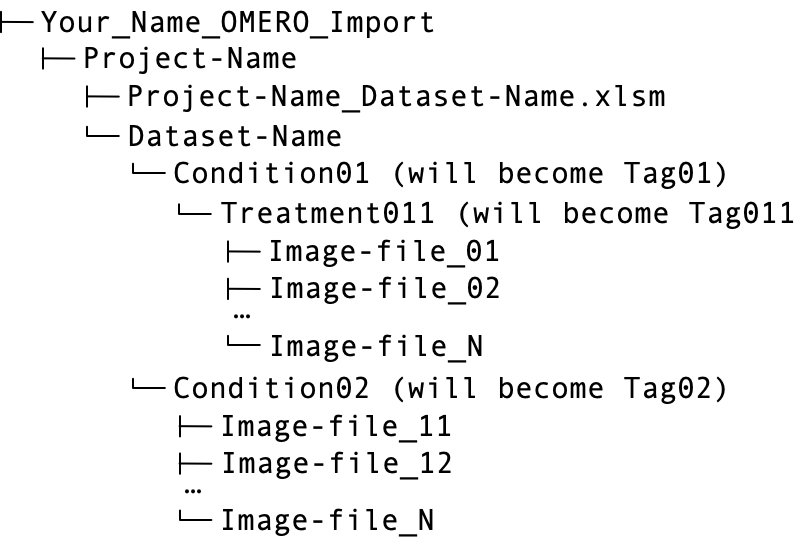
Auto-fill Image Names and Tagsto explore the “Dataset-Name” folder, auto-fill the names and file paths of the Image files to be imported, and assign Tags to each image file depending on its position in the directory structure.
Tip
In the directory structure above, Image-file01 would be assigned Tag01 and Tag011, and Image-file11 would be assigned Tag02, respectively.
In the
IMAGE LEVEL KEY-VALUE PAIRScolumns, starting at Column E, fill in relevant metadata (leave the ones you do not need empty).Save the file.